How to verify file integrity with SHA file
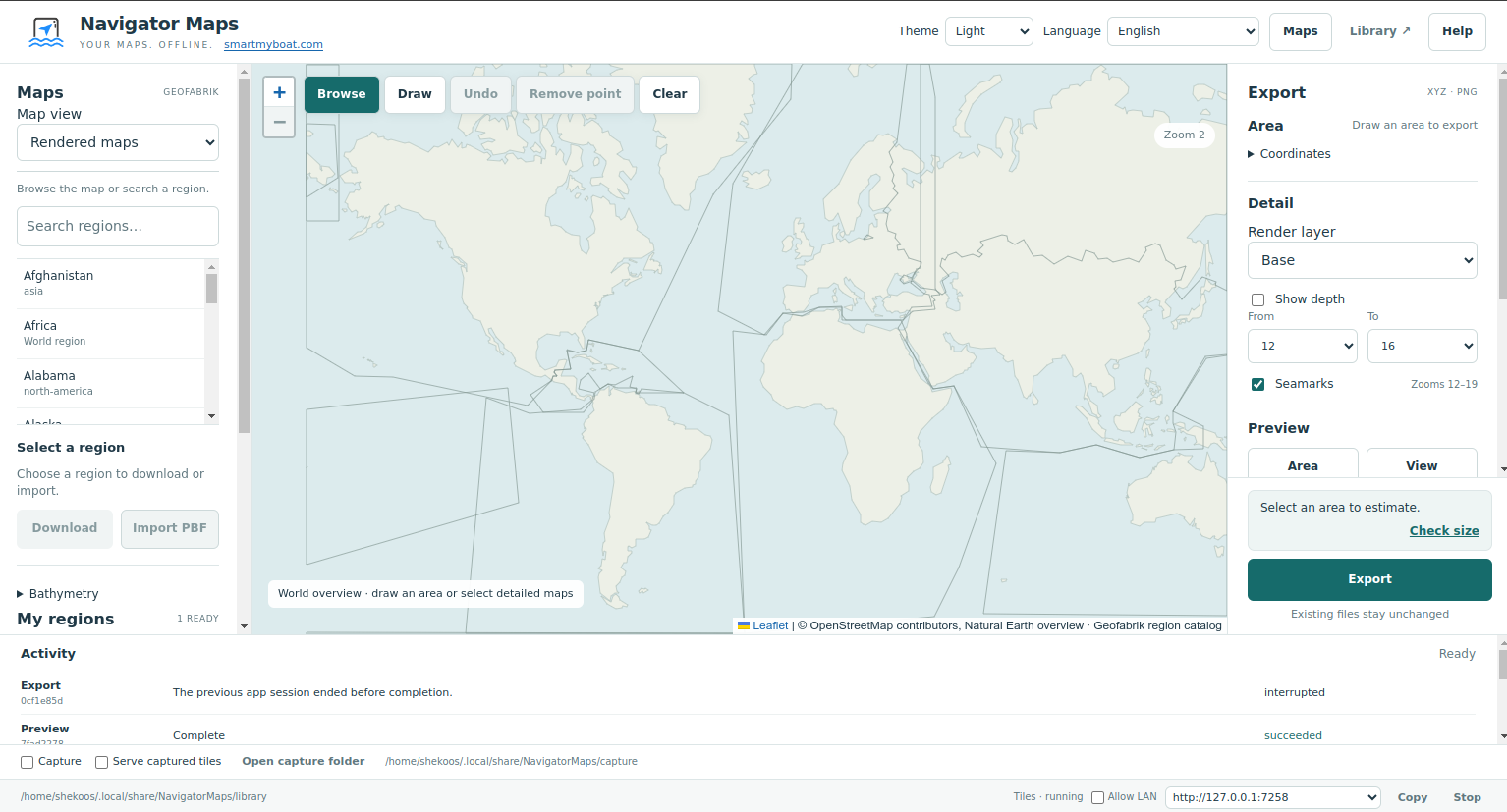
When we compiled Navigator Maps into an installer like an .exe (Windows) or a .deb (Linux), the accompanying .sha file acts as a digital tamper-evident seal for the app.
It contains a checksum, which is a long, unique string of letters and numbers generated by a mathematical algorithm (like SHA-256) based on the exact contents of your app file.
Why do you need it?
- Files can easily become corrupted during a download due to network hiccups. By comparing the checksum of the downloaded file against the one in the
.shafile, a user can instantly tell if the file is incomplete or broken. - If a malicious hacker intercepts
.exeor.debfile and injects malware into it, the file’s contents will change. Because even a tiny change completely alters the SHA string, the user’s computed checksum won’t match the.shafile, alerting them that the software has been tampered with.
How it works in practice
Think of it like a unique digital fingerprint.
- We uploaded both
app.exeandapp.exe.shato the release page. - Download both files and runs a quick command in their terminal (like
certutil -hashfile app.exe SHA256on Windows orsha256sum app.debon Linux).
If the output matches the text inside the .sha file exactly, you know the app is safe, authentic, and safe to install.
How to get Navigator Maps
- Install SmartMyBoat Navigator to your Roku
- Open the app and navigate to Settings (press Option key) > Support > Download Navigator Maps for PC and follow the instructions. Both Windows and Linux (debian) are supported
- Verify SHA checksum – if needed
- Run the app